
Now that we are spinning up Docker containers and maintaining them like a guru, the list of active containers can become quite cumbersome. While it is nice to see them all listed in a terminal after running ‘docker ps’ it can get a bit jumbled. Regardless of the jumble, it is still sometimes nice to see and tweak containers with a Graphical User Interface. That’s where Portainer comes in.

Portainer is a GUI-based tool that runs in a docker container. It provides a friendly and easy to use interface to help maintain all of your containers, and even provides Docker-Compose functionality via a “Stacks” sub-menu. Docker-Compose is a wonderful utility that works with the main Docker Engine that allows for the deployment of multiple containers simultaneously as long as all the details are included in a .yaml file.
Portainer is super easy to spin up and takes less two minutes to get started. First run the following commands one at a time:
- docker volume create portainer_data
- docker run -d -p 8000:8000 -p 9443:9443 –name portainer –restart=always -v /var/run/docker.sock:/var/run/docker.sock -v portainer_data:/data portainer/portainer-ce:2.11.1
If everything was spun up properly, you can go to the following URL:
Follow the Account Creation Wizard and save your details.
Next, click the Home icon at the top left, and then click the ‘Local’ option that is available.
This is your current list of Docker Containers that are running. Logs, health info, and running statuses are all viewable.
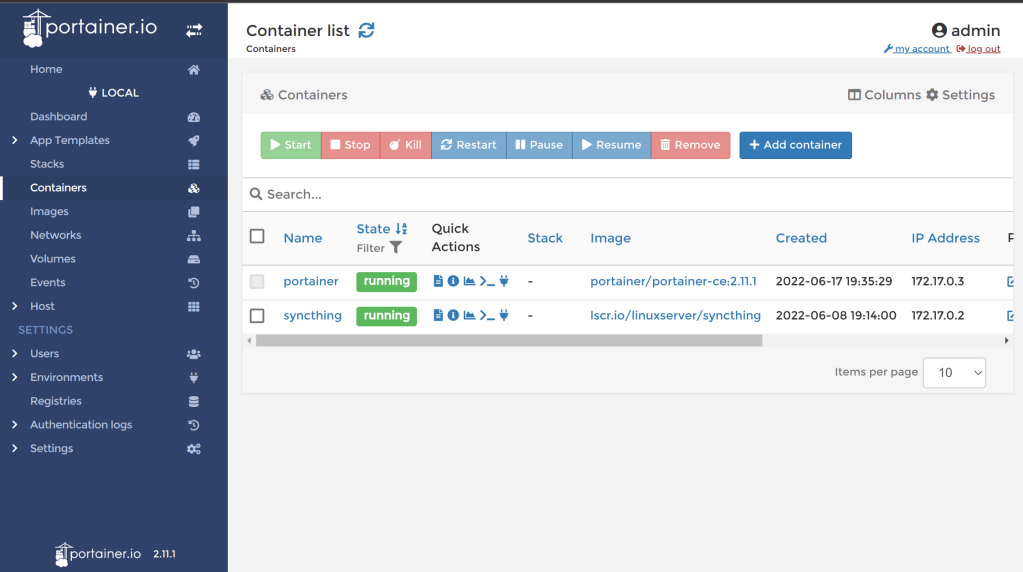
Take a look around. This is basically full control over local containers with a GUI wrapper. I hope this has been a helpful guide, and I hope you like Portainer as much as I do.
 Greyson's Tech Blog