
Tmux or Terminal Multiplexer, is a beautiful tool that helps simplify remote system administration tasks, and allows for elegant multi-tasking. Tmux allows for detaching sessions and allows the user to setup tasks that would once force the user to be present and/or logged in to see it through, and simply walk away.

Conventionally, if a remote connection such as an SSH connection is established, and commands are being executed, a remote process is running. After closing that SSH connection, the process will be killed. Tmux allows for a way to circumvent this, and the process continues to run even after the connection is closed.
Imagine this, you are a Systems Administrator who needs to remotely log into several servers and run numerous updates on these vital systems all the while, each update takes several minutes, possibly an hour, per machine. Via traditional means, you would need to SSH into each machine, run its updates, and leave that SSH session running until the update is complete.

Doesn’t this sound time consuming? Now in a perfect world, these updates wouldn’t need supervision, but Tmux allows its user to execute a command and immediately detach from a session, all the while the command is still being executed in the background. For Tmux to work, it must be installed on the remote system. Shoot, I like to install it on every box I own. I never know when I will need it, and it sure has come in handy several times in the past.
Now if you still aren’t sold, consider the following scenario. You are a big fan of retro gaming. And one day you find a totally legal archive of retro game ROM files stored on a public web server. (ROMs are files necessary to play retro video games) Your goal is to scrape all of these files for your own use, so you can add these retro games to your collection. There are THOUSANDS. And you don’t have the best internet connection, but it is stable. You have a very busy schedule and want to store these files on your home server for when you finish for the day, but you aren’t home at the moment. What is the solution?
Well I will tell you what I did. From my laptop, I SSH’d into my homeserver, started a tmux session, began pulling these files down one by one, via some fancy web scraping commands, then detached from the tmux session. Confident that the process continued after I closed the remote connection, and that when I returned home, I could look at my ROMs library and see the THOUSANDS of old games that used to warm my heart, all stored on my server.

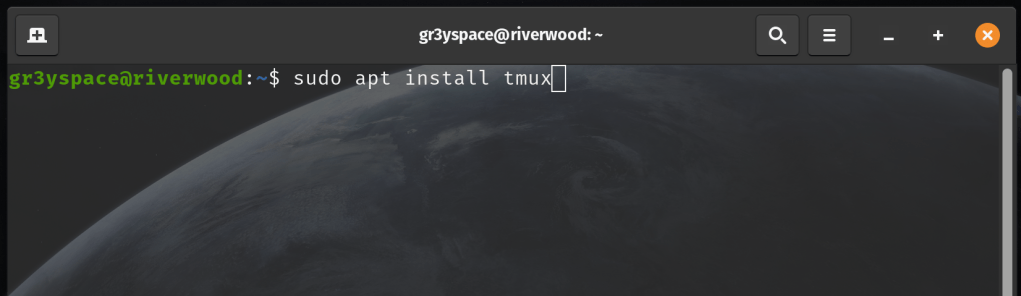
To install Tmux on a Debian based system (To include Ubuntu or Pop!_OS) run the following command:
sudo apt install tmux
Installation should be fairly quick as it is a small package then you should be off to the races.
In your terminal simply enter ‘tmux’.
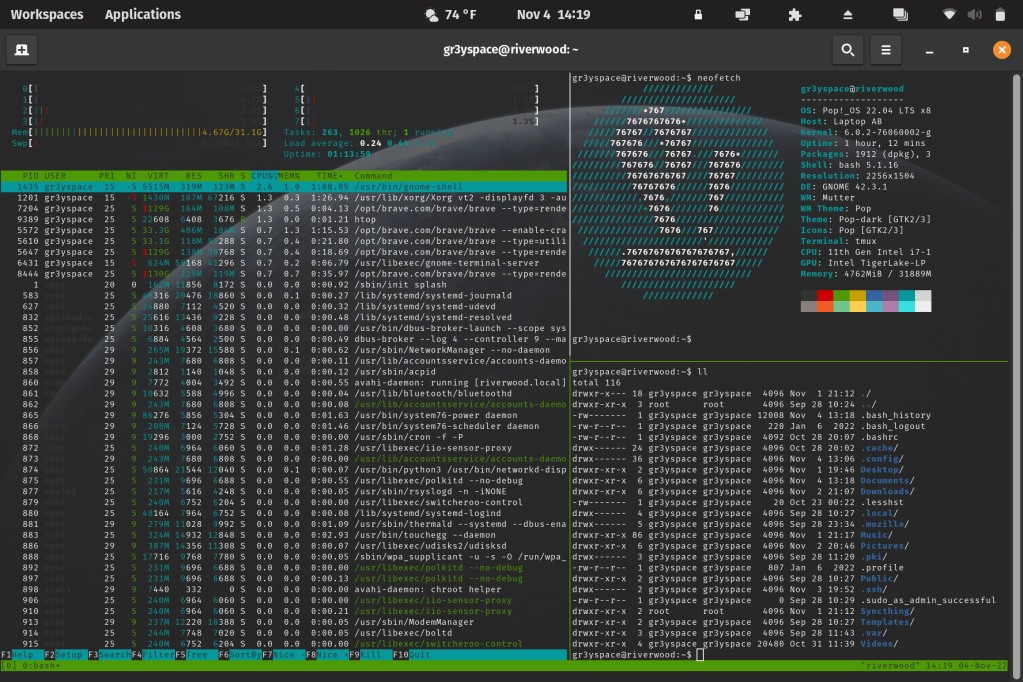
Your window should have changed just a bit. There should now be a bar, likely green, down at the bottom of the page. The bottom left of the bar should say something like, “[0] 0:bash*”

This information at the bottom left shows the current window that you have activated for Tmux. You can run multiple windows within one Terminal, using Tmux. You can think of these as Tabs within a Terminal. They are all separate sessions and can all run different commands from within.
Now here is both the beauty and burden of Tmux.
It utilizes a series of hotkeys. Anyone who knows me, knows that I am a die-hard Nano user. I choose Nano for text editing, over something like Vim because I believe that any tool that forces you to memorize complicated hotkeys is a pain, when alternatives like Nano (which don’t require any buttonology memorization and even provide a helpful little cheat sheet at the bottom of the screen) are available for me to use and usually installed by default. I’ll step off my soap-box now.

That all being said, I am a bit hypocritical for how much I love Tmux.
In my defense, there aren’t many (if any) alternatives with the power or capability that Tmux has.
The first set of hot-keys that you need to know for Tmux is ‘control + b’
These two will be the activating hotkeys. After ‘Control + b’ you can enter the command of your choice and the fun begins.
After entering the Activating Hotkeys, if you enter ‘%’ (the percent symbol) you can open a new pane within the Tmux session. This will fulfill the same purpose as opening two different terminal sessions. I find it handy if I want to keep an eye on two separate processes at the same time. This can be especially useful if you are remoted into a server and you need to troubleshoot multiple time-consuming tasks at once. To navigate between panes, you can use the Activation Hotkeys + ‘← / →’ (either of the arrow keys will work).
Speaking of time-consuming tasks on remote machines, as previously mentioned, tmux can allow you to start a session and detach to leave long, painful tasks to run in the background. It is as simple as running the Activation Hotkeys and the pressing ‘d’ for detach.
To reiterate the few commands that I utilize with tmux:
‘Control + b’ + ‘%’ – Creates a new pane within your tmux window
‘Control + b’ + ‘d’ – Detaches a tmux session, allowing for background processes.
‘Control + b’ + ‘←/→’ – Navigates between live panes in tmux session
‘Control + b’ + ‘c’ – Creates a new window for tmux (similar to tabs)
‘Control + b’ + ‘p’ – Navigates to PREVIOUS tmux window
‘Control + b’ + ‘n’ – Navigates to NEXT tmux window
If you are ever looking for a quick reference for hotkeys, look no further than tmuxcheatsheet.com. I refer back to that cheatsheet whenever I blank out on necessary commands. So give this tool a try today. Poke around. See how useful it is.
If anything, having multiple panes open in a terminal makes you look like a bad ass hacker. If that isn’t enough incentive to download and try this tool, I don’t know what is.
I hope you learned something today. Keep on learning and challenging yourself with new concepts.
 Greyson's Tech Blog