
Do you love Linux? Are you enamored with all of the different distributions and want to try all of them out without committing to a single one? Or maybe you want to virtualize different operating systems for a short time?

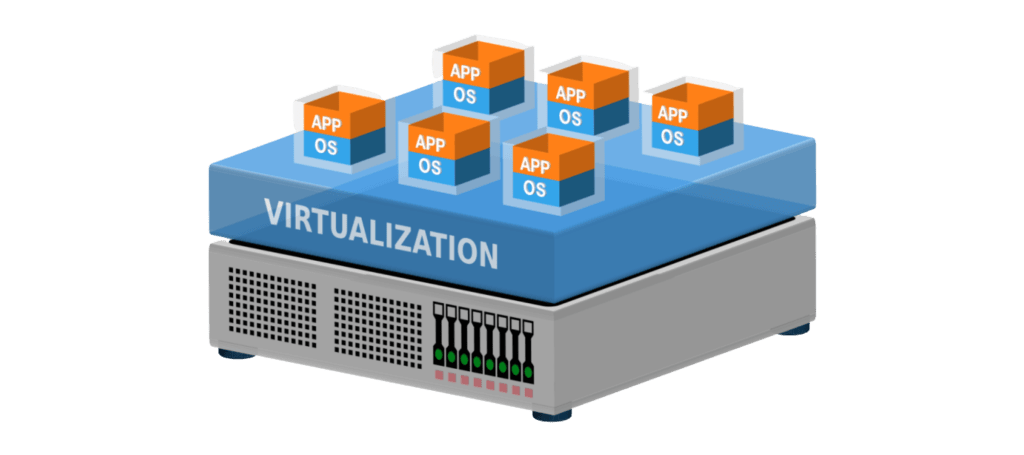
Virtual Machines allow for the quick deployment and usage of an operating system without destroying the existing contents on the hard drive. Now while there is also dual-booting, virtual machines require little to no commitment and can be installed and torn down all in a matter of minutes. This is where a useful tool we will be discussing comes in handy.
Enter Boxes. A wonderful tool that can be installed on just about any Linux system and allows for quick deployment of just about any Virtual Machine you can throw at it.
Full disclosure, I hadn’t planned on writing about Boxes until very recently. Until a few days ago, I thought it was like every other virtualization program. VirtualBox, VMWare, Qemu, Proxmox. Those are just a few other virtualization platforms that are well known throughout the industry. I kind of expected Boxes to be similar to these, and if I’m being completely honest, I had tried Boxes in the past and was not thrilled with what I perceived to be a lack of options and settings. I barely used it and didn’t give it another thought until about a week ago.
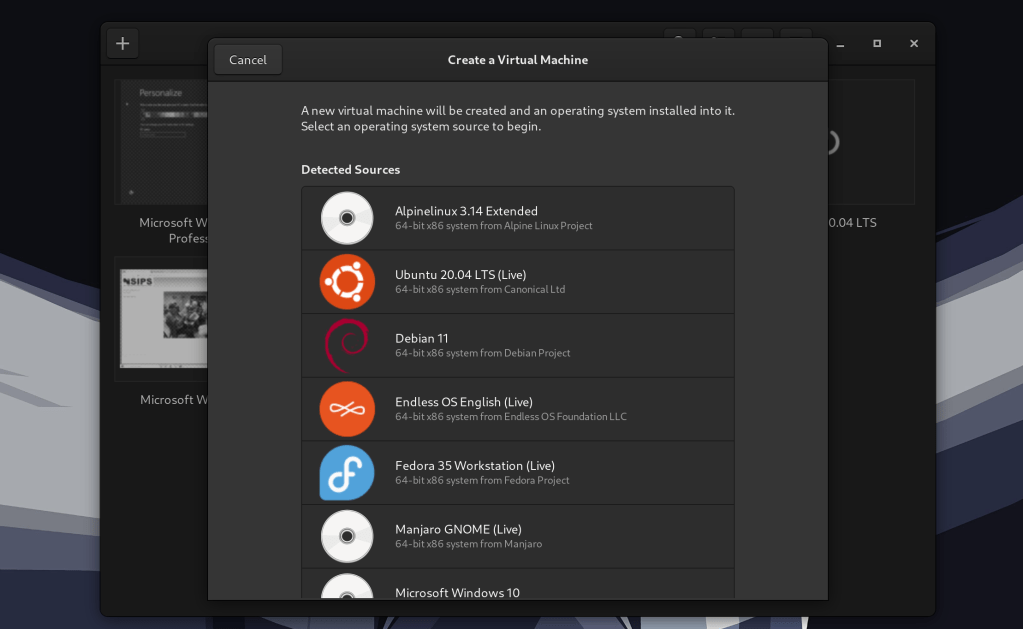
So I needed to spin up a Windows 10 Virtual Machine for work and I decided to give it another go. Downloading was easy since I installed it as a flatpak, (more on flatpaks in a later post) and I was surprised to see it had barely changed. Simple homepage. Limited buttons. But this time, I didn’t give it much thought and decided to quickly spin up that Windows VM. I clicked the ‘+’ icon and the program had auto-populated ‘Detected Sources’ with my virtual disk images that were already in my Documents folder. Nice little feature there.
After selecting my ISO file of choice, I was prompted with an Express Install Screen. Whats this? It is only prompting me to create a username and password. Alright, here we go. After entering that information and waiting a few minutes, my windows 10 install was fully functional. This has literally never been so easy. I am so used to the obnoxious Product Key pages, the Microsoft Account screens, the Cortana screens and all of the Telemetry menus.
Nope, none of that. Just a username and password and Boxes whooshed me right past all of that annoying setup. Immediate change of heart when I saw that. Okay, so far so good. Easy setup and easy to use. Surely, external devices controls are janky and difficult to use. NOPE. I plugged in my device and went to the Three Dots in the top right hand corner, clicked the Devices & Shares tab, and sure enough, my USB device was listed right there. It was immediately recognized by the Windows box when I enabled it. This program is SLICK.

What I overlooked as lacking in features was really simple, elegant and powerful. Don’t do what I did and make quick judgement without doing proper diligence and reviewing the software. People work hard on these programs and they are well supported for a reason.
So if there is any takeaway from this post, it is a two-parter.
- Give Boxes a try, if you want to virtualize any operating system.
- Revisit baked-in programs that may be of use to see if there are features you may have overlooked.
Closing note: Always keep learning about this stuff. Your opinions on different software will continue to evolve. Stay hungry for more, and stay curious.
 Greyson's Tech Blog