
Have you meticulously tweaked your Linux install to your liking? Have you made it JUST PERFECT and want to make sure that your install can be backed up somewhere? Maybe you have valuable files that you want backed up?
Well all of these are perfect use cases for a program like Backups. Also known as Deja-dup this backup solution comes preinstalled on Ubuntu and is available on every Debian based system. This solution is also available across linux distributions via flatpaks but more on flatpaks in a later post.
Deja-dup is an easy to use, and intuitive GUI tool that provides the user with a novice-friendly way to set up periodic backups on any Linux system. For our tutorial today, we will assume you are using a Debian-based system and have access to the APT package manager.
To get started using this tool run the following command:
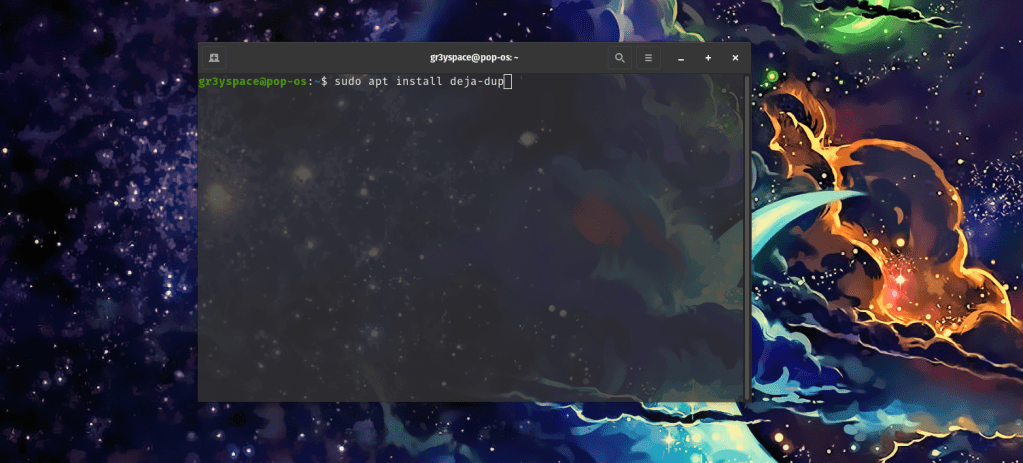
sudo apt install deja-dup
Your terminal should look like the example provided. I am using my Pop!_OS installation for this example.
After the program is installed you can search for the application by pressing Super Key and searching ‘deja’. It should be the only one that pops up, and has a Safe as an icon. Click it.
You should now see something like the screenshot below. With Tabs on the left side saying: Overview, Folders to Save, Folders to Ignore, Storage Location, and finally Scheduling.
These tabs mean exactly what they are titled. You can decide what folders you want saved, and what you want ignored. By default, your Home Directory will be saved and only Trash and Downloads will be ignored. So basically everything but your Downloads will be covered by Backups without modifying settings. The storage location can be whatever you point the system to, ie. a Google Drive, an external hard drive, a network share, the possibilities go on.
I decided to backup my system to my Google Drive. I know my chosen files wont take up more than 50 gigabytes and I want those files saved offsite. I already have multiple copies on my Local Network so that’s not really a big deal.
You can choose to encrypt your destination files using a password. I would recommend doing this to ensure the integrity and privacy of your files. Just remember to save the password in a secure password manager! (I highly recommend BitWarden!)

After you decide what files you want saved and where you want them to be saved, backing up your data may take some time. But rest assured, if you followed this guide, you should be golden. Please feel free to reach out with any questions. Hope this tutorial was helpful in introducing a nice and user-friendly backup solution. Stay safe and stay curious!
 Greyson's Tech Blog