
Are you interested in using Linux as your main operating system on your main machine? Do you want to game on Linux but don’t want to get rid of Windows quite yet?
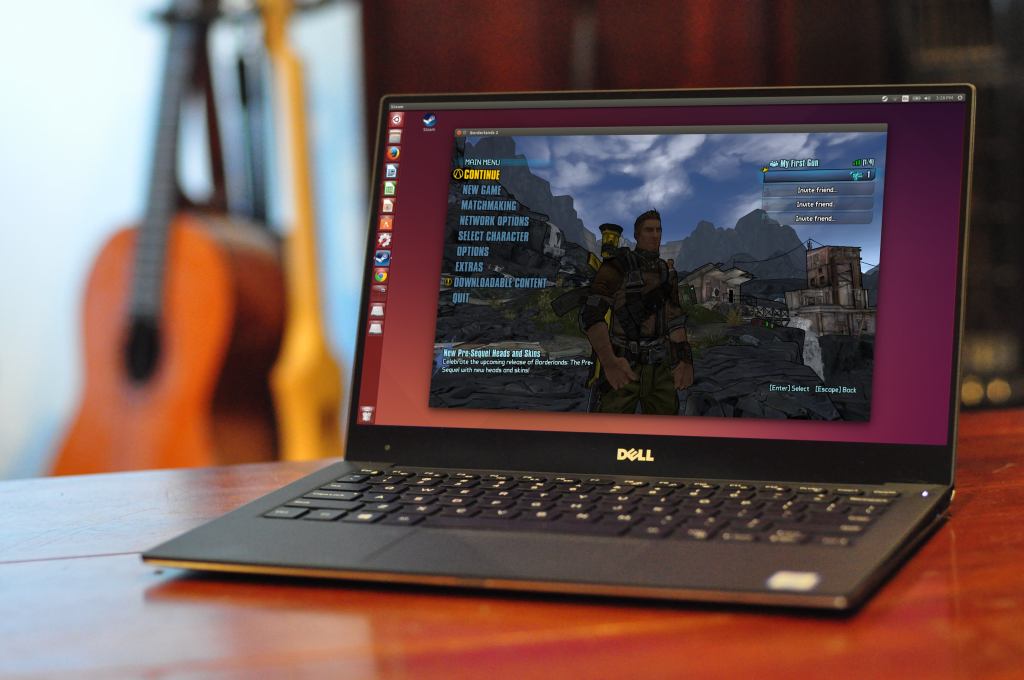
There are solutions to test out Linux on your fancier hardware instead of ‘kicking the tires’ on an old PC. If you have found a Linux Distribution you really like and want to stick with it, you can Dual-Boot it on your daily driver. Dual-Booting gives you the speediness of a “Bare-Metal” Operating system over the somewhat sluggish graphics of a virtualized environment.
When you dual boot, you allocate some space on your existing Hard Drive, and create a bootable instance of the distribution of your choice. Essentially you are allowing for your computer to swap Operating Systems on a whim. It’s quite useful.
For a long time, I have dual-booted Ubuntu 20.04 and Windows 10. I loved the functionality of using Ubuntu (Focal Fossa) on my powerful desktop hardware, and if I needed the Windows partition for any reason, I could just restart the box, and choose Windows at boot. Pretty simple, including installation.
Now some of you may wonder, why doesn’t everyone choose a dual-booted system?
Well, no setup is perfect and there are a few cons to dual-booting.
First off, you are cutting into the overall capacity of your hard drive. For example, if you have one terabyte for your Windows install and decide to put Ubuntu on there you likely will want at least 200 gigabytes (or more) of space on the Linux partition so now you have less that 800 gigabytes left for your Windows partition. And with games being as large as they are these days, that might cut into your capacity. So this situation is not ideal unless you are willing to sacrifice disk space. Secondly, if you want to change operating systems, you have to reboot each time to swap between boots on the disk. As far as cons go, these are fairly minor trade-offs, giving the capabilities you are provided.
How do I setup a dual-boot system? Well great question. Many Debian-based distributions such as Ubuntu and Pop!_OS make this easy at install.
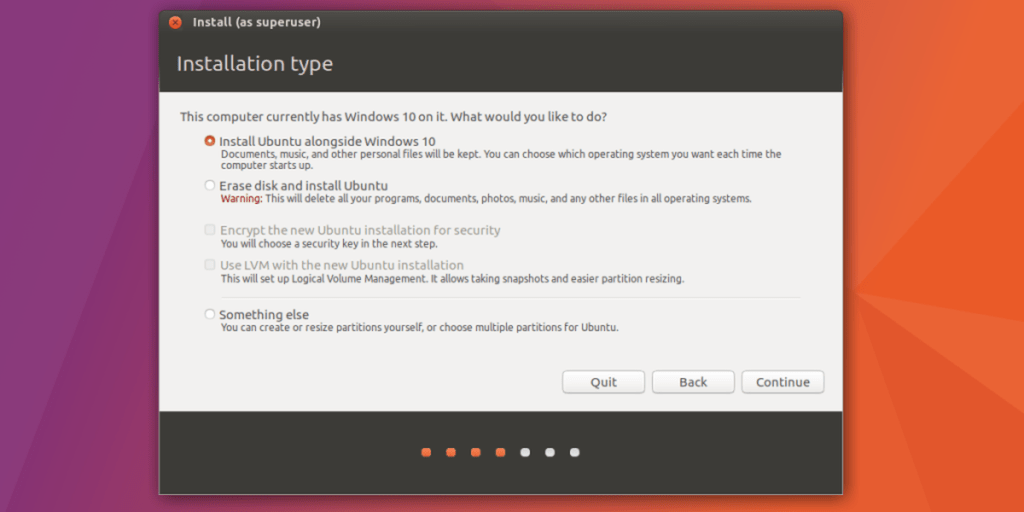
During the initial install, you are presented with disk-partition options and there usually is an option to install the Linux OS ALONGSIDE the Windows partition (or whatever OS you decide to install alongside). This is because the installation process recognizes that there is another type of Operating system on the disk, and new users might not want to blow away everything they might have on their disk. Very useful option for those who want to commit to a distro but don’t want to get rid of Windows, whatever the case may be.
So give it a try, be bold. Look back a few posts for a comprehensive walk-through on how to install Linux from a bootable USB.
Make sure that during the installation you select the option for installing ALONGSIDE your current operating system. Otherwise, you will wipe your entire drive. Granted, the installation setup warns you quite a bit before nuking a drive.
Good luck, have fun with it and stay curious.
 Greyson's Tech Blog