
Anyone who knows me, knows that I am huge on Self-hosting. Give me four minutes and I’ll probably mention my Plex server. Twice. Organizing and hosting my own data is something I’m proud of and something I really enjoy. All that being said, it doesn’t take years of experience to self-host your own media server. But to host a media server, one must first have media that gets served up to other devices. Today I will show you how to start your own media collection. We will do this by digitizing content from legally acquired DVDs.

Before we get into it, I want to talk about “Digital Downloads”.
Way back before Netflix was streaming only (yes they used to send you real DVDs, crazy I know) back in the early days of Blu-Rays, companies would sell a DVD with a redeemable coupon for a “Digital Download” in the DVD case. If you attempted to go to the link for a download, you would be redirected to a site, where you can watch the Movie IN BROWSER. No actual download was present. It was infuriating. How could one possibly build a LEGALLY acquired movie collection if even the “Digital Download” was locked into the browser, (and the company could take the site down any time the wanted to) leaving the consumer with only the hard copy.

Well today we can go into a simple and easy way to take your hardback disk collections, and turn those DVDs into a lovely Media Library.
For this Tutorial, we are running Ubuntu 20.04 (Codename Focal Fossa) however this same media player and all of the capabilities are available across Linux Distributions assuming the VLC is downloaded.
The program we will be installing to be doing all of the heavy lifting is called VLC. VLC is an extremely useful, open source, multimedia player that is cross-platform and plays just about any type of media you can throw at it. This is my preferred way of playing movies that are stored on the local host.
First step is to download VLC. As stated earlier, we are assuming this is an Ubuntu host. so type in the following command:
sudo snap install vlc
We are installing VLC as a snap for ease of deployment. Snap packages are designed by Canonical and were originally intended for only Ubuntu, but now work across Linux systems, similar to Flatpaks and Appimage files.
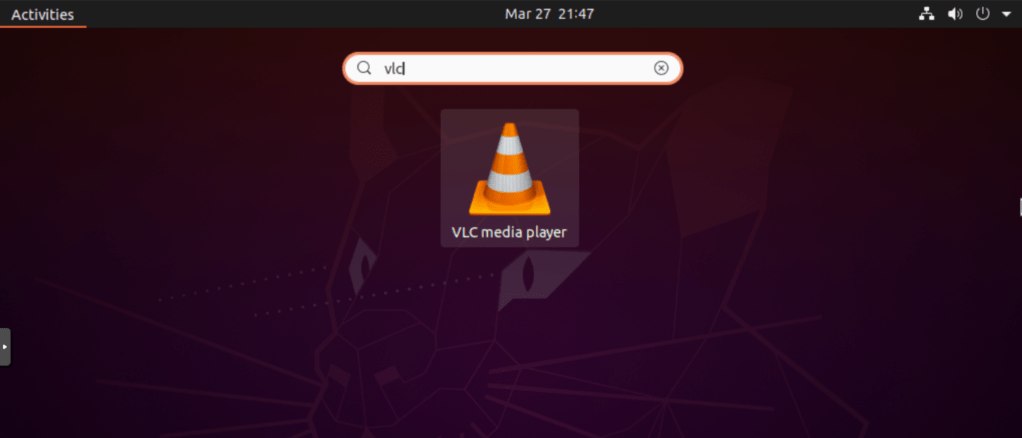
Next step is to open VLC, so find it by pressing the Super Key and searching VLC. It should be the only one to pop up.
After opening VLC, unselect ‘Allow metadata network access’ and click Continue. Click the ‘Media’ dropdown and find the Convert / Save… option. Click on the Disc Tab.
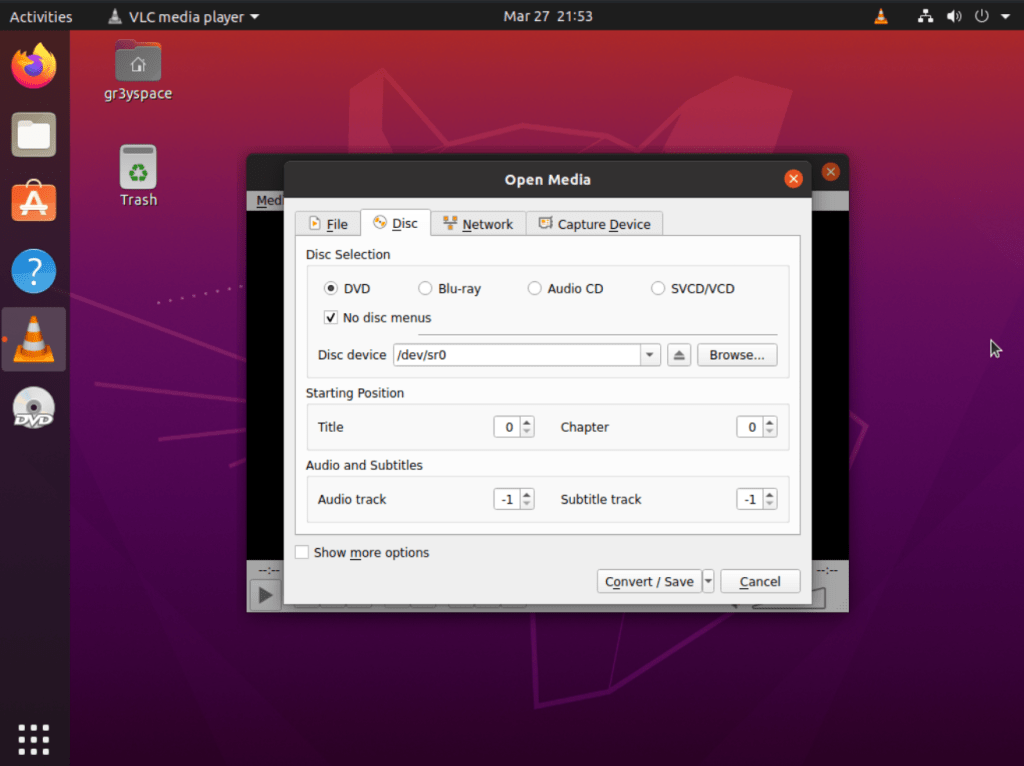
Make sure your Disc is populated in the ‘Disc Device’ field. Then Click Convert / Save. Click ‘Display the output’ and Click the ‘Profile’ Dropdown and select ‘Video – H.264 + MP3 (MP4)’ Option. Name your Destination File and click Start.
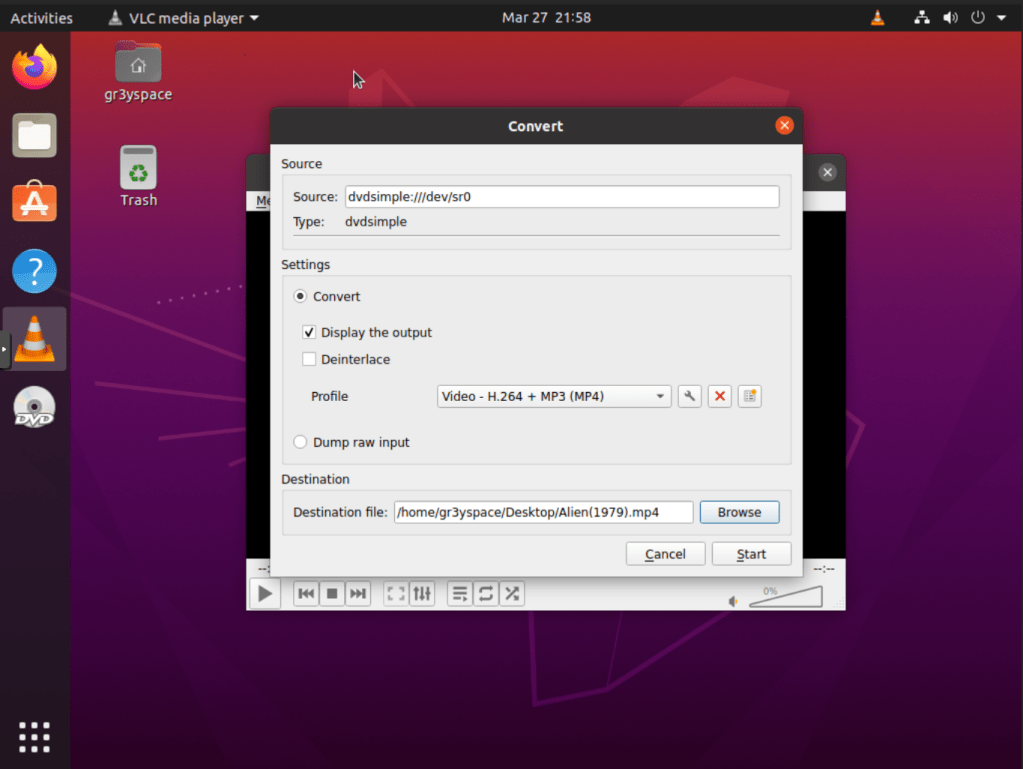
After clicking start, you should be off to the races. The saving of the Movie should take about as long as the length of the movie, so sit tight and be patient. This is the price we pay for LEGALLY ACQUIRED software.
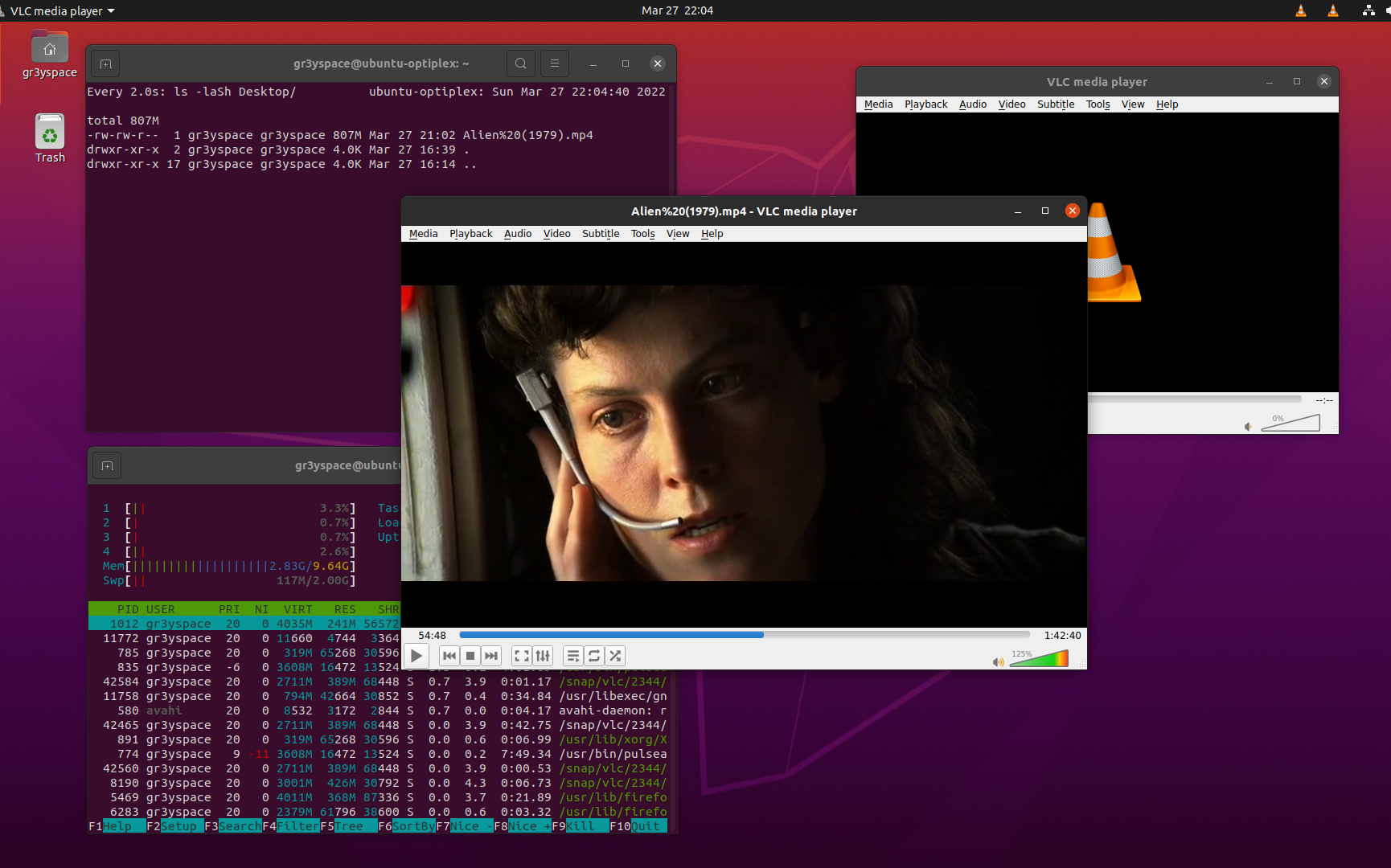
After this is all said and done, you will have a Soft copy of your DVD. Repeat the process until your heart’s content. Enjoy your newly acquired movies!
 Greyson's Tech Blog