
Do you have an old laptop or desktop computer that is gathering dust? An old PC that was replaced because “it was old” or “it was running too slowly”, perhaps? Are you curious and willing to learn Linux basics? Well this project might be for you.
For this tutorial, we will pretend that the ‘old computer’ is a laptop.
If we take a look at one of my previous posts titled Booting from a USB, we can get a good reference on how to set this puppy up.
Otherwise, we will summarize the steps and review in the context of installing Linux.

First off, Why would I want to install Linux?
Well practically speaking, knowing Linux Fundamentals is an invaluable skill to have if you plan on working in the Information Security field, or plan on doing anything Cyber-related.
That being said, running Linux opens the door to learning Network Services and Homelab programs that can be fun and extremely useful, all while being free and opensource. Another advantage of running Linux is that the hardware requirements are SIGNIFICANTLY lighter than that of Microsoft Windows.
Chances are, installing Linux to your older hardware will breathe new life into that Laptop. It will definitely run smoother than it did with Windows. Linux is free of bloatware (pre-installed software that takes up space and often goes unused, slowing down a computer) which Microsoft loves to add to their boxes by default.
BEFORE YOU BEGIN, ENSURE THERE IS NO VALUBALE DATA ON THIS LAPTOP.
For our install, we will be installing Ubuntu Linux.
Step 1: Go to https://ubuntu.com/download/desktop and download the LTS (Long-term support) version of Ubuntu Desktop.
Make sure you download it somewhere you can find it easily later.
Step 2: Go to https://www.balena.io/etcher/ and download the latest version of Etcher. After the file is done downloading, run the Balena Setup executable.
– Click I agree, and the program should open after the executable is installed.
– Click ‘Flash from File’ and select the ISO file you just downloaded.
– Choose the storage device that you want to boot from.
– Click ‘Flash Storage’
– Grab a snack, this might take a few minutes.
After the program is finished Flashing and Verifying,
it will automatically eject the USB drive.
Step 3: Make sure the Laptop is plugged in, and insert the USB drive into the computer.
– Restart the computer.
– Before the computer powers up, hold the F12 key to open the boot menu.
– Select the USB drive to boot from. Hit enter.
– This should take you to the Linux Installer.
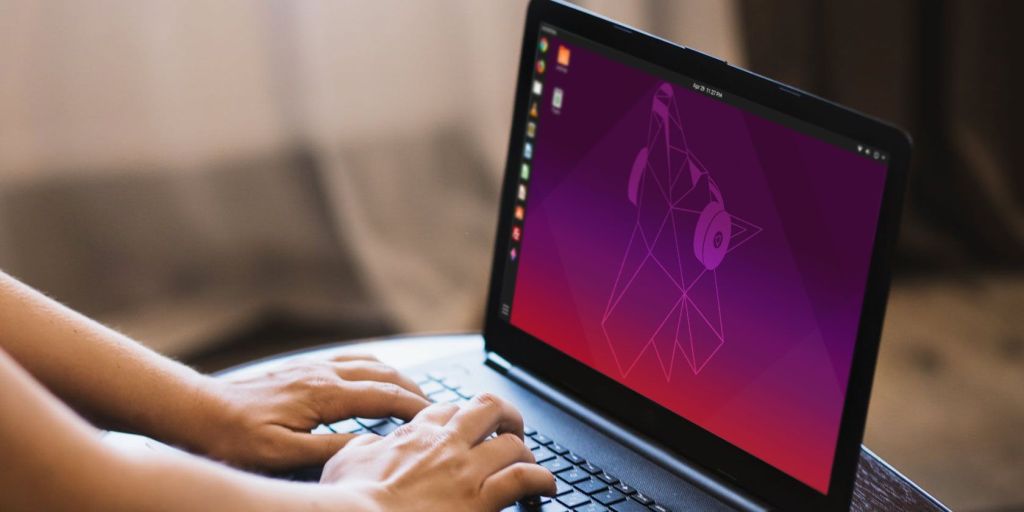
Follow the instructions and enjoy your fresh install of Ubuntu!
Stay Curious, My Friends.
 Greyson's Tech Blog